

- CAD design training
- Creative, video and animation training
- e-Learning and web development training
- Business, media and technical writing training
- Microsoft and AI training


























































 Signing in to the Autodesk Training Evaluation System (TES)
On the morning of your course, you’ll sign in to the Autodesk Training Evaluation System (TES) and enrol on your course. To do this you require a TES account, which you should create ahead of your course.
You sign in to your TES account using an Autodesk ID. If you have a current software subscription, you’ll already have one and you can use this. If you don’t have a software subscription, or would prefer to use a different Autodesk ID, you can create a new one.
Follow these steps:
- Using either Google Chrome or MS Edge on a desktop computer, browse to https://education.autodesk.com/login-student. The Sign in page opens:
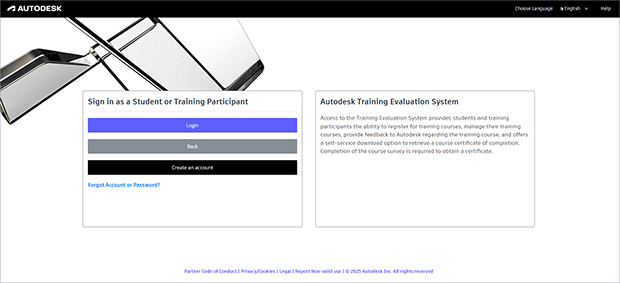
- Click Create an account.
- Fill out your details, and click Next. You’re taken to the Ts&Cs page.
When doing this, specify an email address for which you can receive emails on the morning of your course, as a one-time passcode may be requested when signing in.
- Read the Ts&Cs and, providing you’re agreeable to them, click Register! A message confirms successful registration:
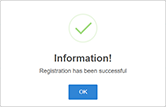
- Click OK to close the message.
You now have a TES account, and you’re taken to the Autodesk Training Evaluation System Welcome page.
- Click Login as a Student or Training Participant. You’re taken back to the Sign in page (see step 1, above).
- Click Login. The Sign in box opens:
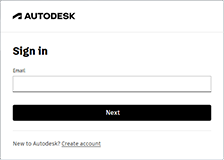
- Enter the email address you entered at Step 3, above, and click Next.
The next stage depends on whether there’s an existing Autodesk ID for your email address.
If there is, the privacy notice is displayed; skip to step 12 below.
If there isn’t, you are prompted:
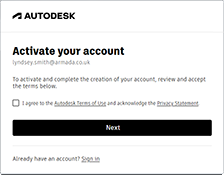
The final stage is to create an Autodesk ID.
- Read the Autodesk Terms of Use and Privacy Statement and, providing you’re agreeable, tick the box and click Next. A verification code is sent to your email address.
- Enter the verification code and click Next. You are prompted:
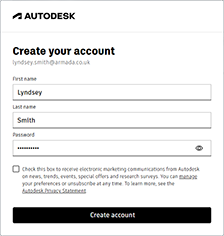
- Create a password of your choosing and click Create account. The following privacy notice is displayed:
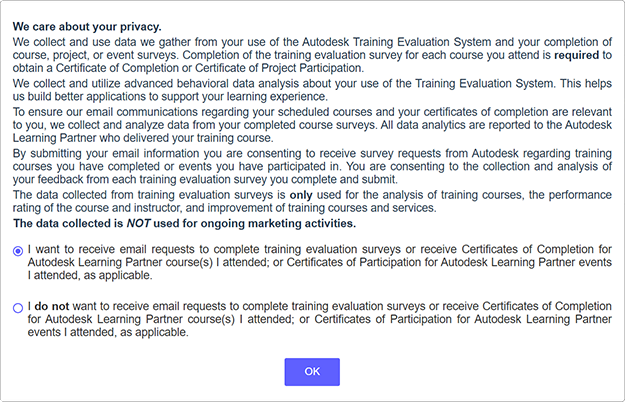
- If you want to receive a completion certificate from Autodesk at the end of your course, choose I want to receive email requests… and click OK.
If you indicate here that you do not want to receive email requests, you will not receive a completion certificate.
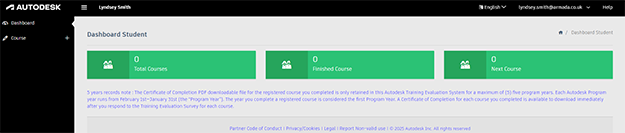
You now have an Autodesk ID. You’re automatically signed in to the TES, and the Student Dashboard is displayed:
Important: Make a note of your Autodesk ID credentials. You will need them to enrol on the first morning of your course.