
- CAD design training
- Creative, video and animation training
- e-Learning and web development training
- Business, media and technical writing training
- Microsoft and AI training
































































 Revit Landscape Architecture
2 days
In centre:
£please call
Live online:
£please call
Key details
Revit provides everything you need to design outdoor spaces using BIM workflows, integrating elements such as topography, planting and hardscapes with building models.
Our Revit Landscape Architecture course covers the creation of a terrain model, plot preparation, site remodelling and contextual massing. It introduces you to the principles of family editing and working with material libraries, and you’ll learn to produce visualisations of your designs.
Sessions include:
- Creating a terrain model
- Remodelling the site
- Contextual massing
- 2D draughting and annotation
- Principles of family editing
- Creation of 3D forms from 2D linework
- Autodesk material libraries.
Revit Landscape Architecture training is arranged on-request, i.e. one-to-one training or a ‘closed course’ for your group. Your training can be arranged to take place on dates that are convenient for you, and can reflect any existing knowledge you have.
Who should attend?
This course is suitable for:
- Newcomers to Revit who want to use the application specifically for landscape design.
- Existing Revit users. The time you save by skipping the introductory sessions is spent covering later topics in more depth.
In-class or online
This course is available in-class at eight centres or live online.
Course times are 9.30am–4.30pm in both formats.
Accredited Revit Landscape Architecture training
Armada is an Autodesk Authorised Training Centre (ATC), and our Revit Landscape Architecture courses are accredited by Autodesk.
Courses are hosted by Autodesk Certified Instructors, with vast experience of using the application professionally. For details, see Expert trainers.
How will I learn?
Revit Landscape Architecture training is hands-on and practical.
Our trainers teach the necessary theory then demonstrate techniques step-by-step. You then practice the techniques taught on a computer running Revit.
There is plenty of time to ask questions, and you can take away all the files you create.
Training guide and certificate
Course delegates receive:
- A highly-practical training guide for Revit Landscape Architecture, to refer to throughout the course, and to use as a refresher afterwards.
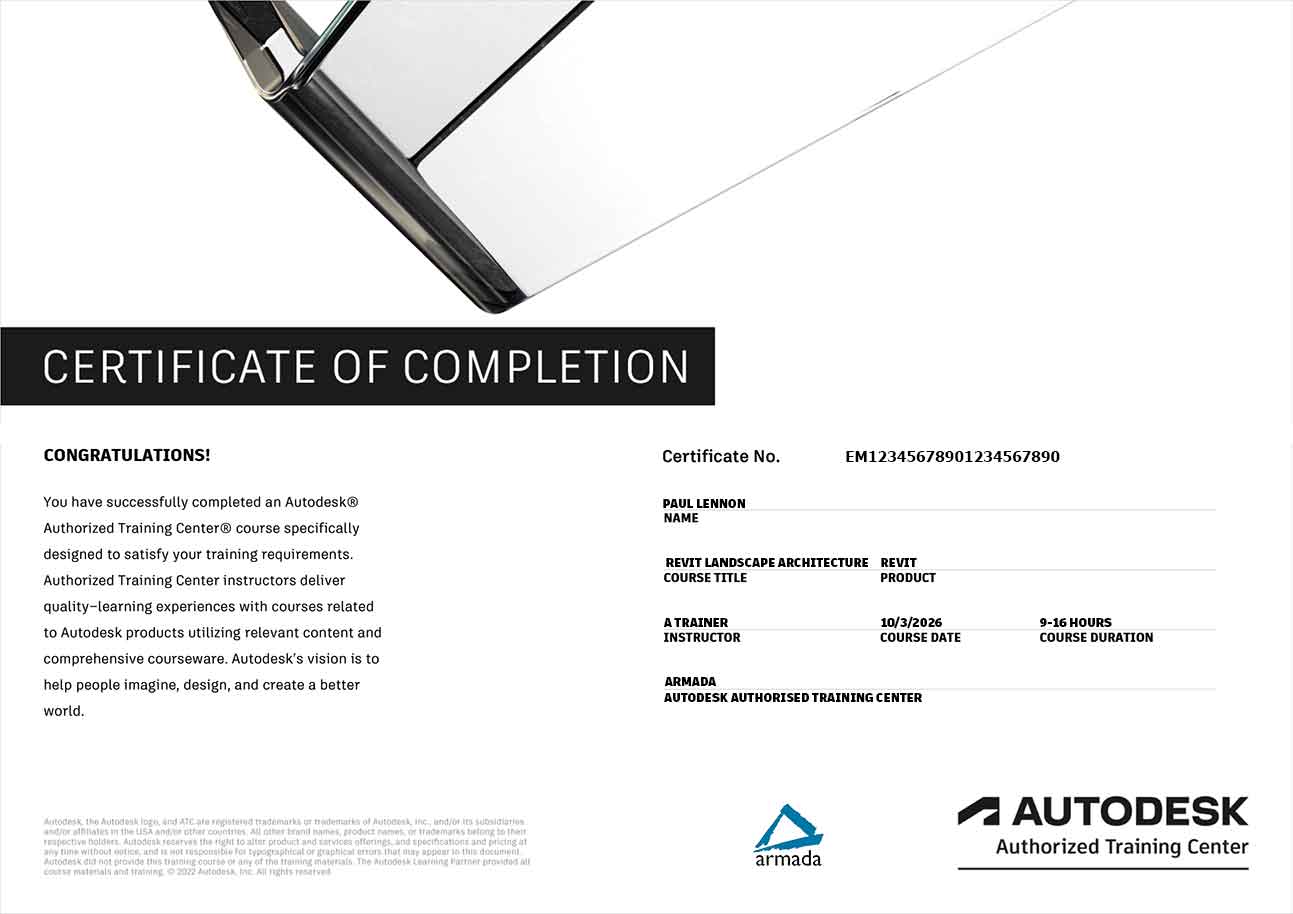
- An e-certificate confirming successful completion of an accredited Revit Landscape Architecture training course. Click here to see an example of the certificate you receive.
After course support
Following Revit Landscape Architecture training, delegates are entitled to 30 days’ email support from their Revit trainer to help with any post-course issues. For further details, see Support.
Prerequisites
No prior Revit knowledge is necessary.
Revit version
Training can be based on Revit 2022 or later.
You must have access to full Revit to be able to carry out the techniques taught in this course. Revit LT does not provide the functionality required for landscape design in Revit.
You do not require any third party plugins.
General information
Payment
Payment for Revit Landscape Architecture training can be made by:
- Bank transfer. Please call 01527 834783 for our bank details.
- Card. Visa, Mastercard and American Express cards accepted. Payment can be made securely online or over the phone. Armada doesn’t record or store your card details.
- Buy now pay later. Available for private bookings; pay in 4 x interest-free fortnightly instalments. Facility provided by Clearpay. For details, see Clearpay terms of service.
Purchase orders
We accept purchase orders from UK registered companies with turnover in excess of £1m, and public sector organisations
Accommodation
See Accommodation local to our training centres.
Cancellations and postponements
If an on-request Revit Landscape Architecture course booking is cancelled giving less than 20 working days’ notice, a cancellation fee is payable. View cancellation terms.
If an on-request Revit Landscape Architecture course booking is postponed giving less than 20 working days’ notice, a postponement fee is payable. View postponement terms.
Terms and conditions
Expert trainer
Stewart Cobb

Stewart began his working life as a junior draughtsman, and progressed through to Design Director leading a studio of designers working on both 2D and 3D projects.
He then worked for himself for over 25 years, completing around 100 design projects per year for a myriad of clients, including household names such as Vauxhall and McDonalds.
More recently, Stewart’s focus has been on training. He has been an Autodesk Certified Instructor since 2010, hosting courses in AutoCAD, Revit, 3ds Max, AutoCAD Plant 3D, Civil 3D, AVT and Advance Steel. He’s also an expert user of Trimble SketchUp and a range of renderers including V-Ray and Twinmotion.
In between courses, Stewart uses these applications professionally when carrying out project work for clients. Using the applications regularly helps him to keep up-to-date with the latest technologies and practices.
Outside of work, Stewart enjoys music (he runs the sound desk for a number of local bands), reading and playing with any new piece of technology he can lay his hands on!

Course content
Introducing Revit as a BIM tool
- What is BIM and what does it mean?
- The benefits of BIM
- What will BIM deliver?
- Industry drivers
- Introducing Levels of BIM
UI Tour, Project Navigation and View Creation
- Interactive session introducing the menu and screen layout
- Interrogating the model to extract views
- Plans, sections and elevations
- Displaced views, callouts and drafting views
- 3D isometrics, perspectives and walkthrough movies
- Placement and properties of grids, levels and dimensions
- Introduction to basic Revit elements
Element selection and Manipulation
- Object selection methods
- Element properties and manipulation
- Instance and type parameters
- Modifying tools, nodes and snaps
Visibility Control and Categorisation
- Project-wide Settings
- View-specific overrides
- Element-specific overrides
- Individual line overrides
Model Development Methodology
- Is BIM just about 3D?
- Information timeline and overload
- How a project develops from a base template
- The complexity of components
- Controlling graphical display
Creating a Terrain Model
- Creating a topography using toposolid
- Linking the DWG survey data
- Establishing Coordinates
- Using survey data to create a toposolid
- Creating a site model
- Removing the CAD Link
Working with Other Disciplines
- Linking Revit models for reference
- Shared Coordinates
- Model transmittal preparation
Preparing the Plot
- Rotating project and true North
- Copying the topography and creating a toposolid
- Building footprints
- Retaining walls
- Gardens and paths
Working with Slabs
- Adding slabs
- Bespoke system families
- Adding slopes to slabs
- Slope defining lines
- Slope arrows
- Modifying sub-elements
- Adding points and split lines
- Pavements and patios
Kerbs and profiles
- Applying kerbs using the sweep tool
- Loading library profiles
- Creating in-place profiles
Adding Site Components
- Placing stairs and ramps
- Adding benches, bins, bus shelters and bollards
- Outside lighting
- Creating bespoke components
Remodelling the Site
- Adding /removing triangulation points
- Adjusting heights of triangulation points
- Cut and fill calculations
Contextual Massing
- Geometry formation tools
- In-place mass forms
- Placing mass forms on the site
Scheduling Elements
- Component schedules
- Material Take-off establish quantities
Hatching Regions
- Applying surface patterns and Filters
- Filled regions
- Room and Area tools
- Area plans
- Colour schemes and legends
2D Draughting and Annotation
- Introducing annotation tools and component categories
- Detail component libraries
- Repeating details Lines and arcs
- Text, tags and keynotes
Sheet Compilation and Publication
- Project browser organisation WIP and Publish
- Creating and populating sheets
- Working with schedules
- Publishing and document management
Rendering
- Autodesk libraries
- Applying materials and textures
- Developing 3D views with the Camera
- Rendering views
- Creating a Walkthrough
- Exporting the video
Principles of Family Editing
- The basic process
- 10 stages for trouble-free family creation
Live online training
Online training lets you participate in a live Revit course from your place of work or home.
We do everything possible to make your online training experience as close as possible to actually being in the classroom. You can:
- See and hear our trainer, and the other delegates participating in the course…

- Watch our trainer demonstrate techniques in Revit.
- Interact by speaking, or using chat.
- Share your screen with our trainer, and allow them to take control to explain something.
Like our in-class courses, online Revit Landscape Architecture courses…
- Are presented by Autodesk Certified Instructors.
- Give you plenty of opportunity to carry out assisted, practical exercises using Revit.
- Offer 30 days’ email support from your trainer.
All you need is an Internet-connected computer with…
- Revit installed. If you don’t have a current subscription to Revit, you’re entitled to a 30-day trial that’s ideal for participating in training. We’ll send you a link to this. If you’ve already used your trial, we can lend you a license for the duration of your course.
- A webcam and audio capability. If your computer running Revit doesn’t have these, you can use a second device, such as another computer or tablet. See Hardware recommendations for live online training for further details.
If there’s anything you’re not sure about we’ll do our best to help you. We won’t be able to assist with your Revit installation, but we can provide details for Autodesk support who’ll be able to help you with this.
We provide everything else…
- Links to download the files, resources, etc. you’ll use in your course.
- A training guide. For most courses, you can choose from a printed copy that we post to you, or a PDF.
In the week before your course, we’ll send you an email containing everything you need to prepare for and participate in the training. We’re available in the days ahead of your course to assist if you need any help.
Please note that we are not able to record scheduled online courses for privacy reasons.
When you attend live online training, you’re participating in a real course, hosted by a real trainer, in real time

Related blog posts
31/10/2025
What’s new in Revit 2026?
10/05/2024
What’s new in Revit 2025?
 06/03/2019
What is BIM and why should I embrace it?
06/03/2019
What is BIM and why should I embrace it?